
You don’t need expensive software to capture what’s happening on your display. Every modern Mac ships with powerful, free tools for screen recording on Mac, and learning how to use them takes only a few minutes. Whether you want to save a tutorial for a colleague, record a bug for tech support, capture a video call, or build a training library, macOS gives you everything you need right out of the box. Students, remote workers, and content creators rely on this feature daily, and once you learn the basics you’ll reach for it constantly. The steps below work on macOS Ventura, Sonoma, Sequoia, and the newest releases, with only minor differences on older systems. In this guide, we’ll walk through exactly how to screen record on Mac using both the Screenshot toolbar and QuickTime Player, show you the fastest screen recording shortcut Mac tricks, explain how to stop screen recording on Mac cleanly, and cover how to grab screen recording Mac with audio. We’ll also point out your screen recording save location Mac default and show when it makes sense to switch to a dedicated screen recorder for Mac. By the end, you’ll know how to start, stop, and manage every clip with confidence—no watermarks, no subscriptions, and no confusing setup required for basic captures.
Getting Started: The Built-In Tools for Screen Recording on Mac
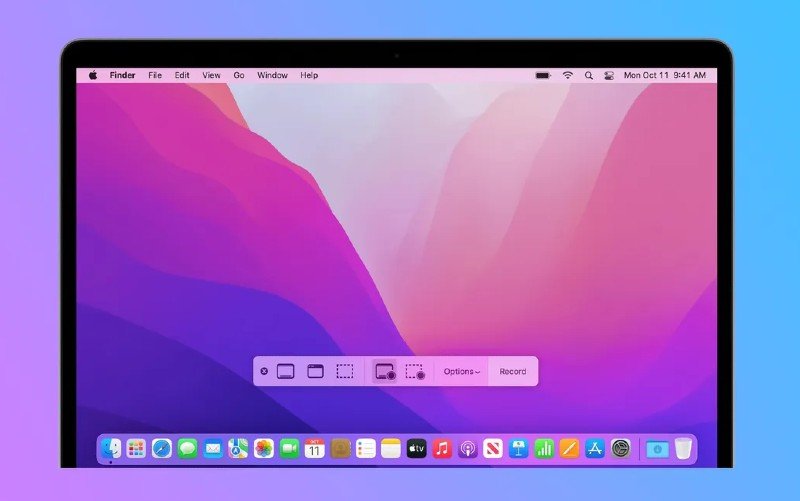
Apple bundles two free utilities that handle macOS screen recording on every Mac released in the last several years. The first is the Screenshot toolbar, summoned with Shift + Command + 5, which opens a clean floating panel for capturing the entire screen, a selected window, or a custom portion. The second is QuickTime Player screen recording, accessed from the menu bar through File > New Screen Recording. Under the hood, both rely on the same QuickTime screen recording engine, so the output quality and file format are identical. The Screenshot toolbar is the fastest choice for quick clips, while QuickTime gives you a familiar window plus a few extra microphone options. Before you begin, make sure your Mac runs macOS Mojave (10.14) or later to use the toolbar; older systems fall back to QuickTime alone. Either way, you’re ready to record screen on Mac in seconds, with no downloads and no account sign-ups standing between you and your first capture.
How to Start a Screen Recording on Mac, Step by Step
To record screen on Mac with the Screenshot toolbar, press Shift + Command + 5 and choose Record Entire Screen or Record Selected Portion. Click Options to pick a microphone, set a timer, or change where the file lands, then press Record. With QuickTime Player screen recording, open the app, choose File > New Screen Recording, click the arrow next to the red button to select audio input, and press Record. Click anywhere for full screen or drag to select a region. A small stop indicator appears in the menu bar while capture is active. This same workflow powers most how to screen record on Mac tutorials you’ll find online, because it’s the method Apple officially documents and supports. Keep your desktop tidy and notifications off for the cleanest result, and remember that the recording is saved automatically the moment you finish, so you never lose footage by forgetting a manual save step.
How to Stop Screen Recording on Mac (and End QuickTime Screen Recording)
Knowing how to stop screen recording on Mac is just as important as starting one. The fastest method is the universal screen recording shortcut Mac combination: Control + Command + Esc. Press and hold those three keys and your Mac ends the capture immediately, saving the file to your chosen location. This shortcut works whether you began with the Screenshot toolbar or QuickTime screen recording, and it’s the easiest way to end QuickTime screen recording without hunting for hidden controls. If you prefer the mouse, click the small stop icon—a square inside a circle—in the menu bar at the top-right of the screen. On MacBook Pro models with a Touch Bar, a red stop button appears there as well. You can also reopen the Screenshot toolbar with Shift + Command + 5 and click its Stop button. For hands-free operation, enable voice control Mac screen recording in System Settings > Accessibility, then simply say “Click Stop Recording.” If QuickTime freezes during a very long capture, force quit from the Apple menu as a last resort—though this may lose unsaved footage. Mastering these options means you’ll never be stuck wondering how to finish a clip.
Capturing Screen Recording Mac with Audio
By default, built-in screen recording Mac with audio captures only your microphone, not the sound playing from apps or videos. To record your voice, open the Screenshot toolbar or QuickTime, click Options, and select a microphone input before you start. Capturing system audio—the sound from YouTube, games, or calls—requires a free virtual audio driver such as BlackHole, which you route through Audio MIDI Setup. For most walkthroughs and voiceovers, microphone input is enough and keeps the workflow simple. If you need both internal sound and your narration, combine the virtual driver with your mic in a multi-output device. This step is the single biggest limitation people hit when they first try QuickTime screen recording, but the fix is free and takes about ten minutes to set up the first time, after which it works automatically for every future session.
Finding Your Screen Recording Save Location Mac and Changing It
After you stop, your clip doesn’t vanish—but it may not be where you expect. The screen recording save location Mac defaults to the Desktop, named “Screen Recording [date] at [time].mov”. If it’s missing, you may have chosen a different folder in the Screenshot app’s Options before recording. To find any lost file, open Spotlight with Command + Space, search “.mov”, and sort by date to spot the newest clip. To change the default, open the Screenshot toolbar, click Options, and pick a new destination such as a dedicated Movies folder. Setting a consistent screen recording save location Mac keeps your Desktop uncluttered and makes later editing far easier, especially if you create recordings on a regular basis and want to avoid mixing captures with screenshots.
When to Use a Dedicated Screen Recorder for Mac
The built-in tools are excellent for quick captures, but they stop short of advanced needs. A dedicated screen recorder for Mac adds flexible recording modes, built-in editors, annotations, scheduled captures, and more export options. If you’re comparing the best free screen recorder for Mac, look for one that’s also a screen recorder Mac free to start, with no watermark and no time limit. A good screen recorder for Mac lets you mark key moments with live annotations, capture system audio and webcam together, and export in multiple formats up to 4K. For long tutorials, gaming content, or professional demos, upgrading from basic QuickTime screen recording to a fuller tool can save hours of post-production. Choose the option that matches your workflow, and you’ll record, stop, and save with far less friction than the bare-bones built-in path allows.
Conclusion
Learning how to screen record on Mac puts a surprisingly powerful tool at your fingertips, and you don’t need to install anything to get started. We covered the two built-in paths for screen recording on Mac—the Screenshot toolbar and QuickTime Player screen recording—and showed how both deliver clean, watermark-free clips you can use right away. You now know the essential screen recording shortcut Mac (Control + Command + Esc) to stop screen recording on Mac in a heartbeat, plus the menu-bar and voice control Mac screen recording alternatives that let you end QuickTime screen recording hands-free. We also explained how to capture screen recording Mac with audio, where your screen recording save location Mac defaults, and how to change it to a tidier folder. When basic capture isn’t enough, a dedicated screen recorder for Mac—whether the best free screen recorder for Mac or a screen recorder Mac free tier—unlocks annotations, editing, and 4K export that built-in tools lack. The next time you need to record screen on Mac, you’ll move from start to saved file with real confidence. Practice the shortcut once, pick a sensible save folder, and your macOS screen recording workflow will feel effortless instead of intimidating. With these methods in hand, every tutorial, bug report, and call you capture stays exactly where you want it. If you ever run into a frozen capture or a missing file, the stop methods and save-location tips above will get you unstuck in seconds. Keep this guide bookmarked, and screen recording on Mac will become second nature rather than a chore you dread.